Updating the Server License
Follow the instructions below to update the Anzo server license key.
If your license is expired, do not follow the steps below. The Server Licensing screen (shown in step 1 below) will be blank except for an Access Denied/Forbidden License is invalid error message. To update an expired license, follow the instructions in Updating an Expired License.
- In the Administration application, expand the Servers menu and click Licensing. Anzo displays the Server Licensing Information screen. For example:
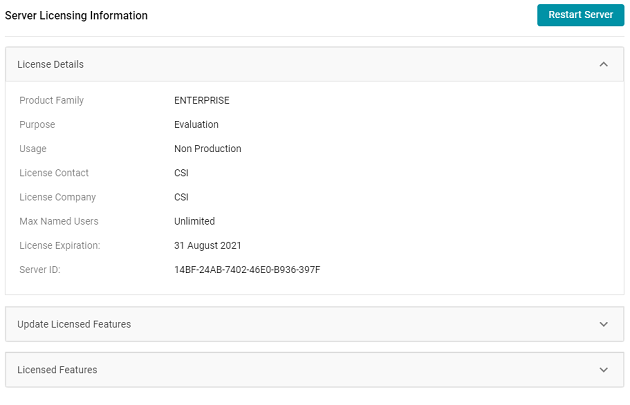
- Click Update Licensed Features to expand that section of the screen.
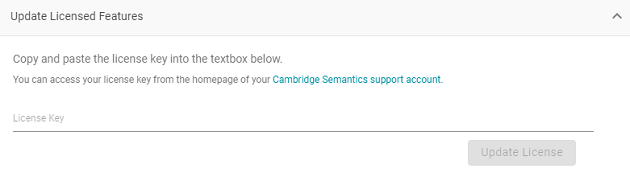
- Paste the new license key into the License Key field, and then click the Update License button. The license is updated but does not take effect until Anzo is restarted. The following dialog box is displayed:
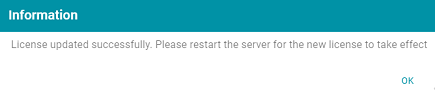
- Click OK to close the dialog box. Then restart Anzo to apply the license updates. You can click the Restart Server button at the top of the screen. For information about other ways to stop and start Anzo, see Starting and Stopping Anzo.
It may take Anzo noticeably longer to start for the first time after the license is updated. Subsequent starts will return to the usual startup time.