Updating the Server License
Follow the instructions below to apply or update the Graph Studio server license.
If your license is expired, the Server Licensing screen (shown in step 1 below) will be blank except for an Access Denied/Forbidden License is invalid error message. To update an expired license, follow the instructions in Updating an Expired License.
- In the Administration application, expand the Servers menu and click Licensing. Graph Studio displays the Server Licensing screen. For example:
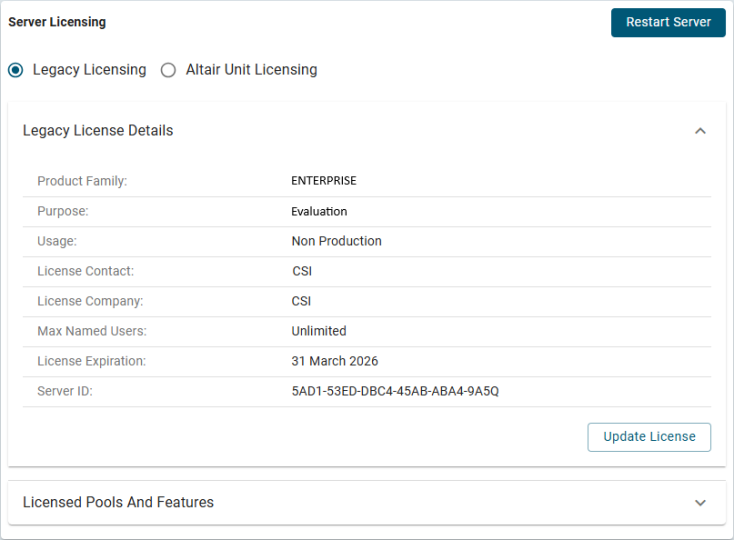
Two options are available: Legacy Licensing and Altair Units Licensing. Select the appropriate option depending on the type of license provided to you by Altair License Administrator.
Altair Units Licensing
Altair Units is a value-based license management system enabling metered usage of an entire suite of products. All Altair products have a capability to use a single pool of recyclable Altair Units. There are two licensing methods depending on where the Altair License Server is hosted:
Managed Altair Licensing
If your organization is using Managed Altair Licensing, the License Server is hosted by Altair, and the application checks out the required license units by contacting the license servers in the Altair cloud via HTTPS. See the topics Machine Authorization for Managed Altair Licensing and License Configuration.
For more information on managing your licenses, see the Altair One™ portal documentation.
On-premises Altair License Server
If your organization is using a self-hosted Altair License Server, the application checks out the required license units by connecting via TCP to a license server in your corporate network or in a cloud managed by your organization. The license server is managed by your IT team. See the License Configuration topic for instructions on configuring your application to connect to the license server. The Altair License Manager software installation and administration guide is available on the Altair Documentation Portal. - Once you specified the licensing method and license parameters lick Update License to expand that section of the screen.
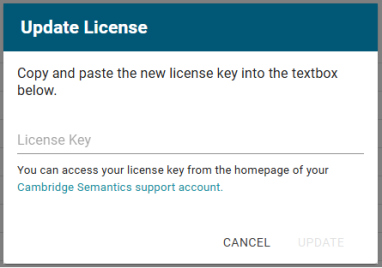
- Paste the new license key into the License Key field, and then click the Update License button. The license is updated but does not take effect until Graph Studio is restarted. The following dialog box is displayed:
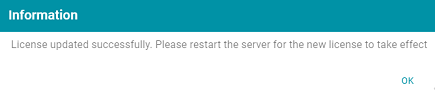
- Click OK to close the dialog box. Then restart Graph Studio to apply the license updates. You can click the Restart Server button at the top of the screen. For information about other ways to stop and start Graph Studio, see Starting and Stopping Graph Studio.
It may take Graph Studio noticeably longer to start for the first time after the license is updated. Subsequent starts will return to the usual startup time.